The error of iPhone 16 Pro Max not allowing the banking app to use the camera is often due to iOS conflicts (especially after updating), blocked access rights, or application errors. Please fix it by: updating/reinstalling the banking app, turning on Camera permissions in Settings > Privacy, restarting the device, or updating to the latest iOS.
Table of Contents
Check and update your banking application
Checking and updating banking applications on the iOS 18 platform is an essential activity to fix possible technical problems. Updated versions often include bug fixes and feature improvements, to improve application stability and compatibility with the new operating system. Updating your banking application to the latest version will help you fix issues such as login errors, transaction problems or application crashes, thereby ensuring a smoother and safer user experience.
To update the banking application, access the App Store application and select the profile icon in the right corner of the screen. Here, you can check to see if your banking application is up to date. If not, please update it.

Delete and reinstall the banking app
Uninstalling and reinstalling the banking app helps resolve error issues related to the iOS 18 operating system. When removing the app, you can remove data that is outdated or incompatible with the latest iOS version. Reinstalling the application will then restore the application to its default state and operate more stably. This minimizes software conflicts and increases compatibility with iOS 18. This can help fix problems such as app crashes, login errors, or failed transactions.

How to do it: Hold down the banking application icon you want to delete and select “Delete application”. Then, go to the App Store and download the application again.
Restart your iPhone
Restarting the iPhone can be considered the most effective measure to improve device performance errors. In case of problems with banking applications on the iOS 18 platform, this not only helps free up RAM memory but also turns off applications running in the background and refreshes the system. This helps fix minor errors related to software conflicts or temporary data overload, thereby helping your banking application return to stable operation.
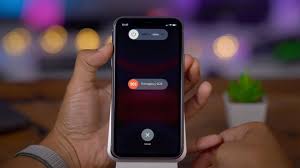
After upgrading to a new iOS version, restarting the device is an important step to ensure that the system operates in the most stable way. Therefore, if you encounter a banking application error on iOS 18, restarting the device may be the solution to handle this problem.
Update iPhone to the latest iOS version
Upgrading to the latest iOS version is a way to help solve problems related to banking applications on iOS 18. Updated versions often include bug fixes, improve security vulnerabilities and improve compatibility with many applications, including banking applications. This not only helps fix issues such as difficulty logging in, transaction problems or app crashes, but also enhances device security. Thereby minimizing the risk of cyber attacks and the risk of losing your personal information.

Clear web browser cache
Clearing your web browser cache can help you resolve some technical issues, especially when using integrated web-based e-banking applications. To do this, follow these steps: Go to Settings, select Safari and continue to select Delete history and website data.
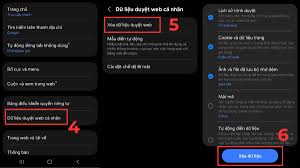
Check the network connection on the device
Try switching between Wi-Fi and mobile data connections to check if the problem is caused by the network connection. Always ensure that you have a stable internet connection so that using banking applications runs smoothly and without interruption.

Contact your bank’s customer support department
If you’ve tried everything above and still can’t fix your iOS banking app error, contact your bank’s customer support department. Our team of experts will provide detailed instructions or information regarding any reported issues with your iOS version of the app.